How to use Tronergy — step by step
From opening the app to sending USDT takes six steps. On every screenshot the green frame shows where to tap. The app switches language with the flag icon at the top.
Video guide · 1.5 minutes. Prefer reading? The same steps with screenshots are below.
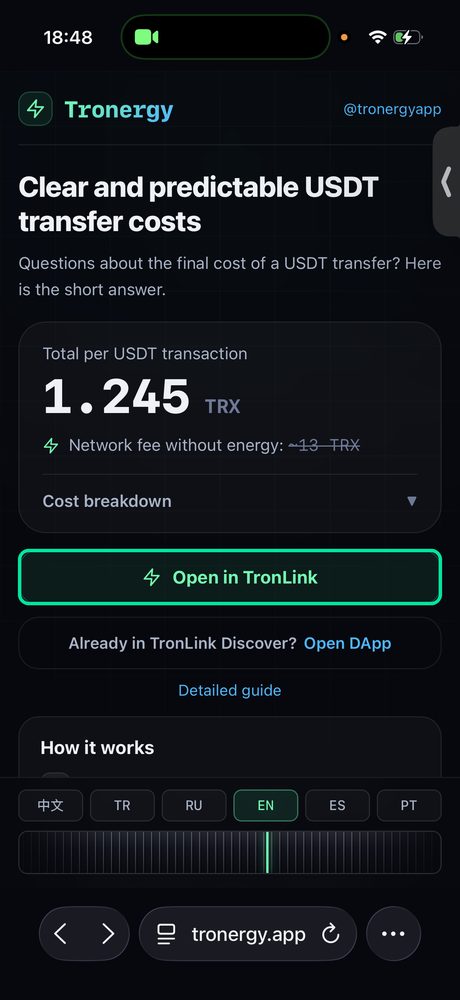
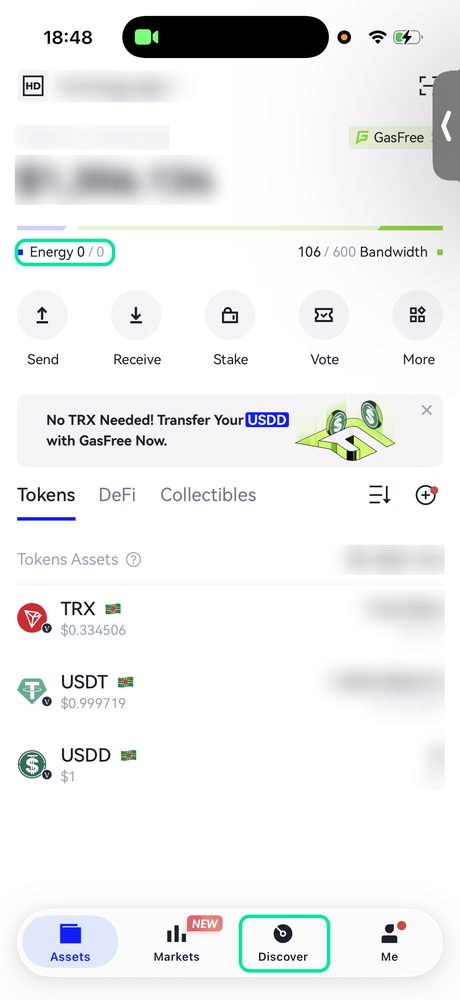
Step 1. Open Tronergy in TronLink
Tronergy runs inside the TronLink wallet. Two ways to get there:
From the website: open tronergy.app in your phone browser and tap “Open in TronLink” — the wallet opens the app for you.
From the wallet: in TronLink go to the “Discover” tab at the bottom and type tronergy.app in the search bar.
Step 2. Connect your wallet
TronLink asks whether to give the site access to your wallet address. Tap “Approve”.
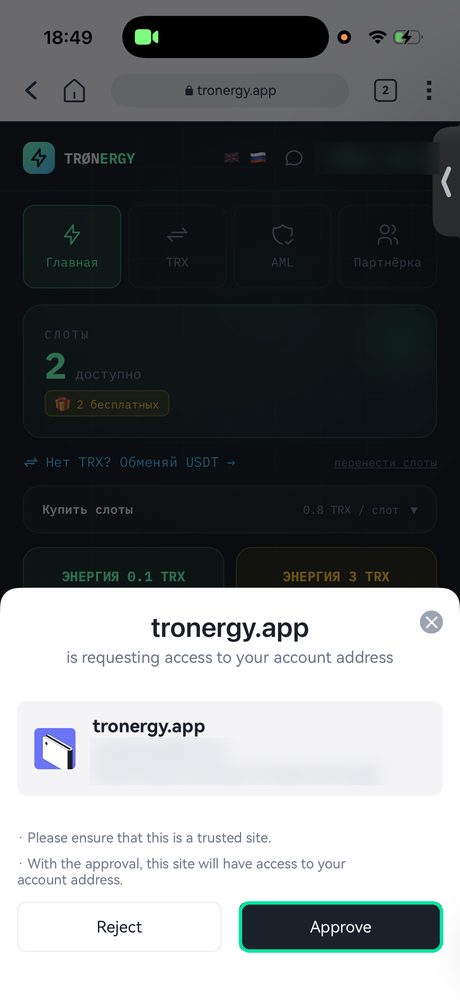
The app only sees your address. Your keys and funds stay with you — nothing happens without your confirmation.
Step 3. Main screen
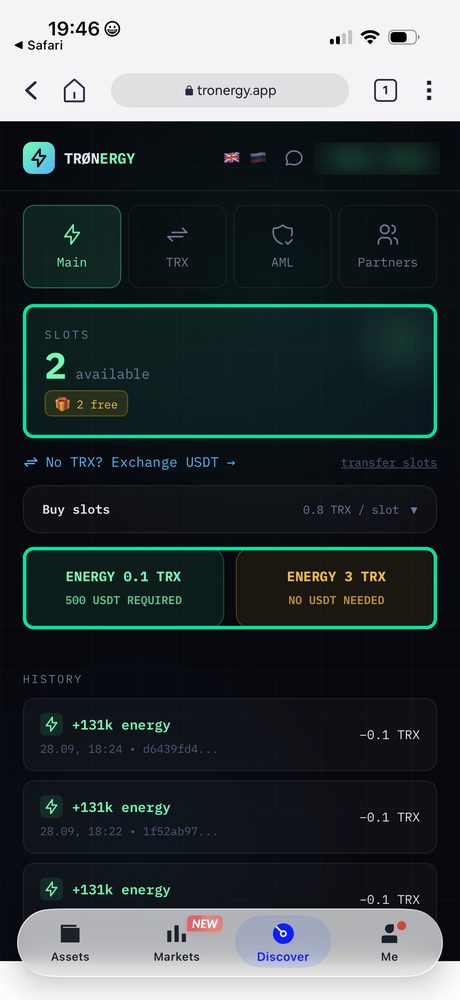
At the top is the number of your slots. A slot is the fee for getting energy through the app: one transfer with 0.1 TRX energy uses 1 slot. New wallets get 2 slots for free; after that you can buy more in the “Buy slots” block. Slots never expire.
Below are two energy buttons:
“Energy 0.1 TRX” — if you hold 500+ USDT, uses 1 slot;
“Energy 3 TRX” — if you hold less, uses no slot.
Step 4. Get energy and confirm in TronLink
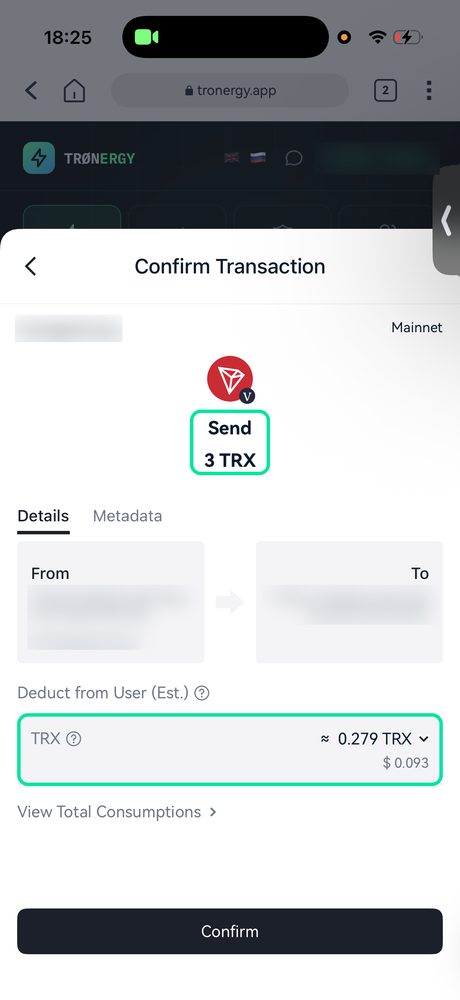
Tap the button you need — TronLink shows a confirmation window. Check the amount (0.1 or 3 TRX), tap “Confirm”, then enter your password or confirm with Face ID.
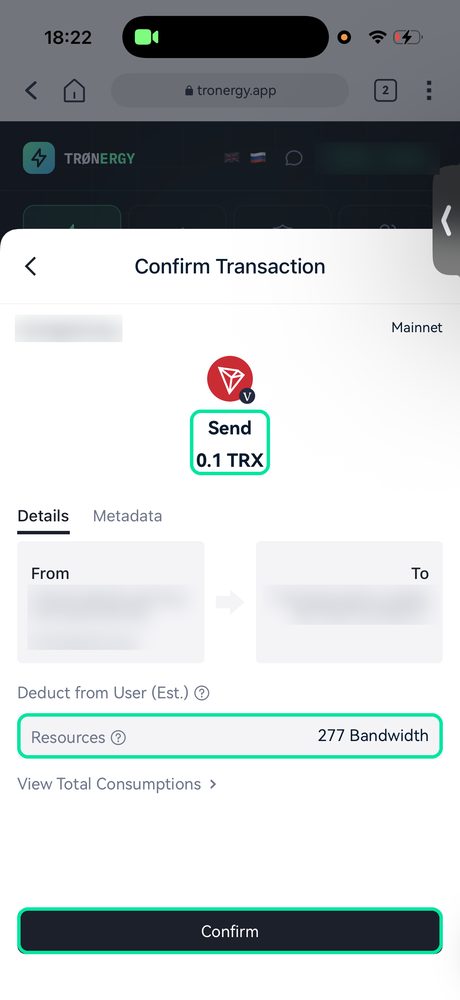
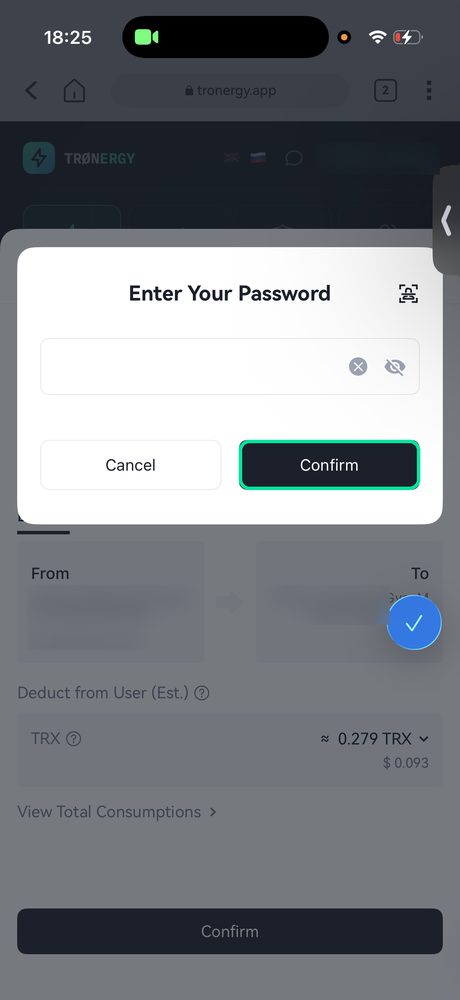
The “Deduct from User” line shows how this transaction itself is paid for. While your free daily bandwidth lasts, bandwidth is used. Once it is used up, the network takes a little TRX, as on the right (~0.28 TRX). That is a network fee, not ours.
Issuing wallets are assigned at random, and for some of them issuing costs just 0.01 TRX instead of 0.1.
Step 5. Energy has arrived
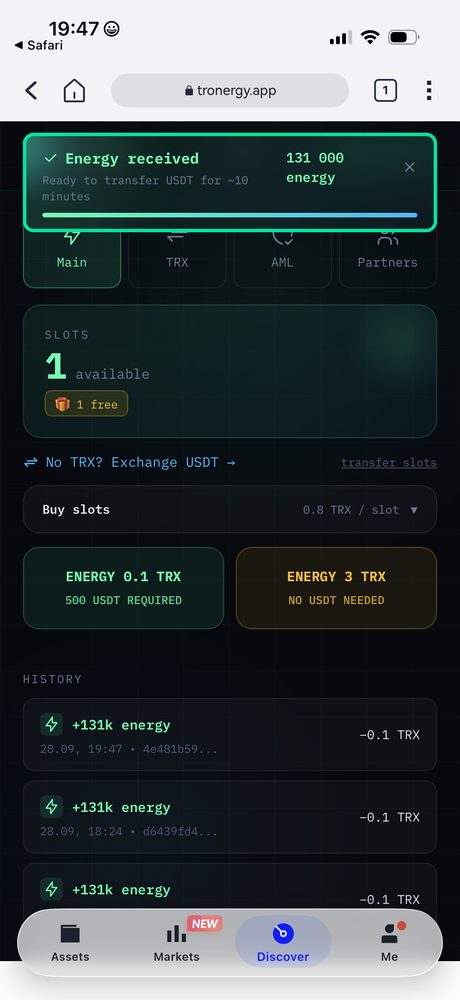
A few seconds later the app shows “Energy received” — 131,000 energy. You can also see it on the TronLink main screen in the Energy line. Energy stays valid for 10 minutes — send your transfer right away.
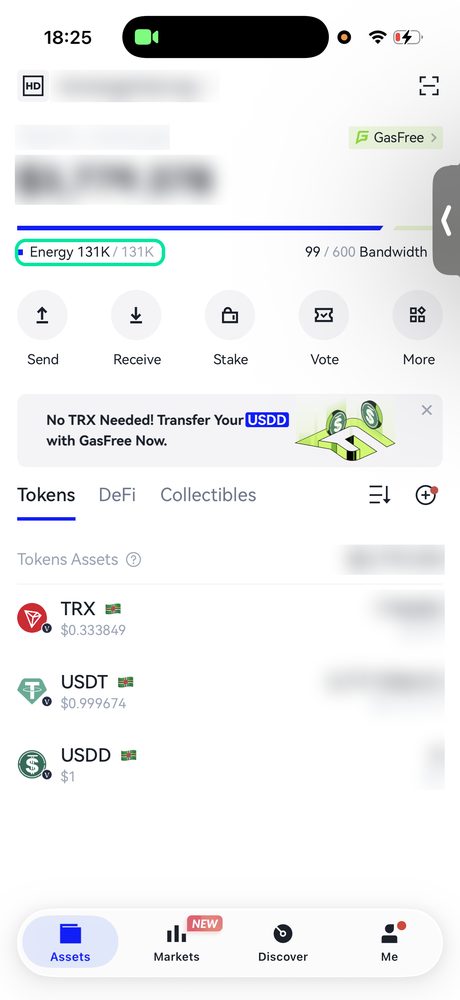
Step 6. Send USDT as usual
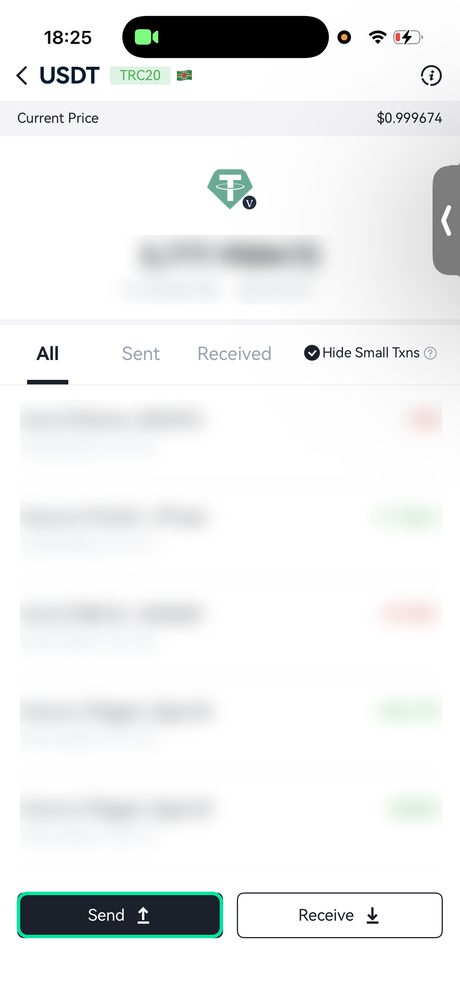
In TronLink open USDT, tap “Send” and make a regular transfer. Energy covers the fee — instead of ~13 TRX you paid 0.1 TRX for energy plus the slot price.
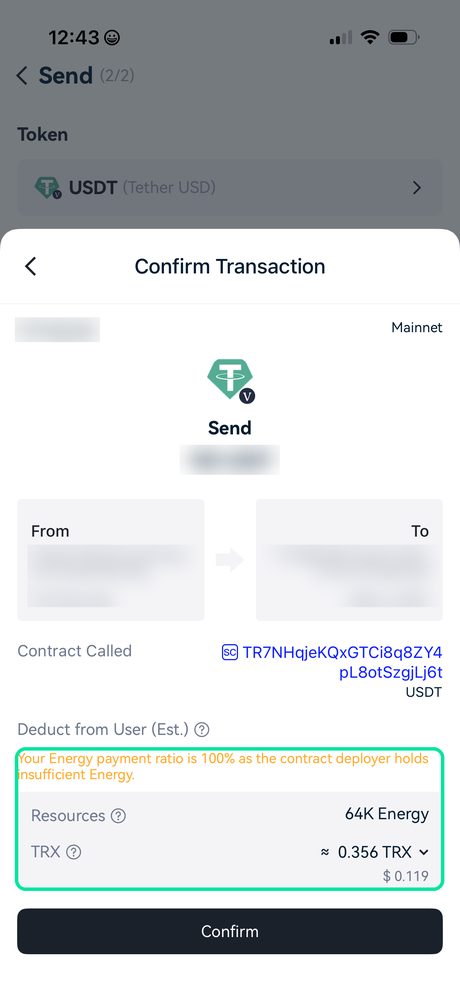
A note on bandwidth: a USDT transfer also uses network bandwidth. If you have none left (free daily limit used up), the network charges a fee for it in TRX — about 0.36 TRX, shown in the confirmation window. This network fee applies whichever way you get energy.
FAQ
Need another transfer? Again: get energy → send.
Energy for 0.1 TRX wasn’t issued? Tap again — another wallet will issue it. Or take the 3 TRX option — it’s guaranteed. No slot is used when issuing fails.
No TRX at all? Without TRX, USDT cannot be sent anywhere — first get a few TRX onto your wallet: withdraw from an exchange, ask someone to send some, or buy via P2P. After that you can use energy and the USDT → TRX swap in the app.
Is it safe? Non-custodial: no transfers to “energy addresses”, so there is no address to mix up; no approvals or multisig are ever requested.
Something went wrong? Write to our group @tronergyapp — include your wallet address or transaction hash.